The way we access the different relocation maps and charts on astro.com makes it confusing in how we put the two visuals together.
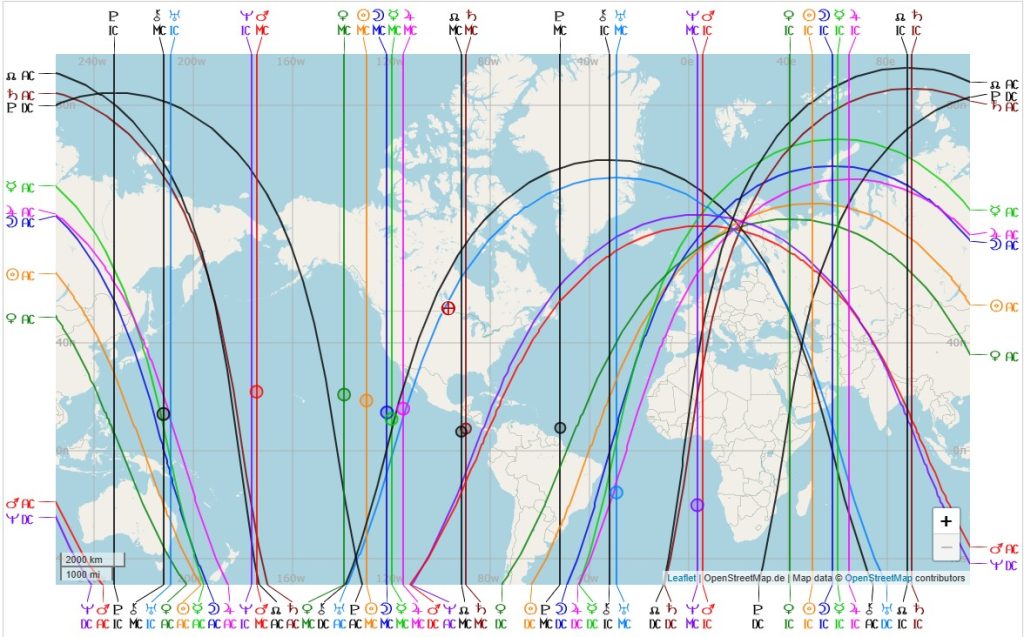
The map is a big-picture overview of where our planets hit different angles.
…. but the map only gives us our initial ideas of where to look. In order to start fine-tuning our choices, we need to study our relocated charts to give a full picture of what our lives would be like in our new location…
…. like this. If you move laterally (east – west) around the globe, you’ll start turning your birth chart like a dial.
(If you move north-south, you’ll possibly manage to move certain planets to the next house if there’s a big enough distance from A to B, but the turning won’t be as dramatic. Neither is it predicable as houses widen and flatten.)
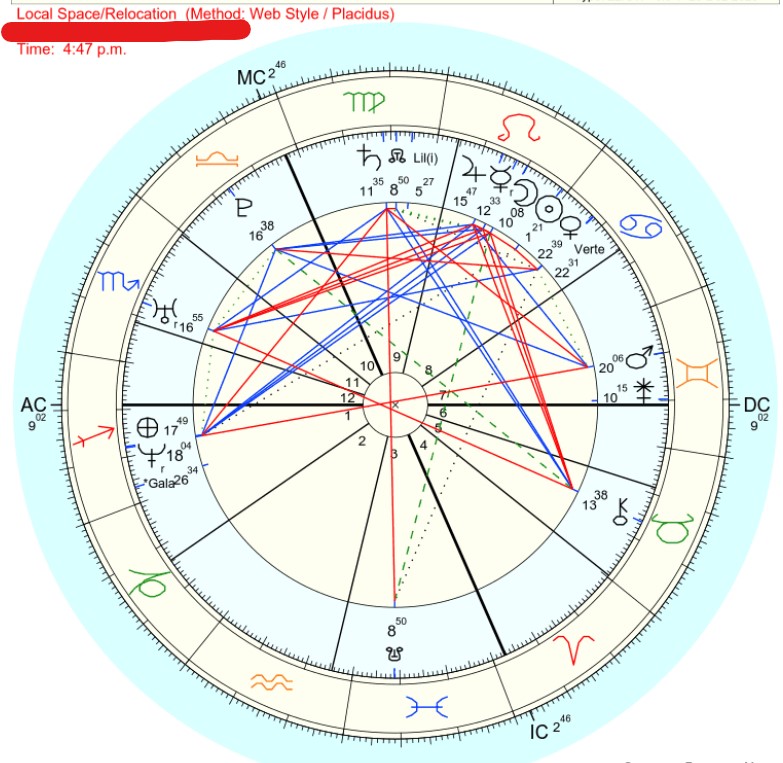
In order to generate the relocated wheel, follow these steps:
1. Go to www.astro.com
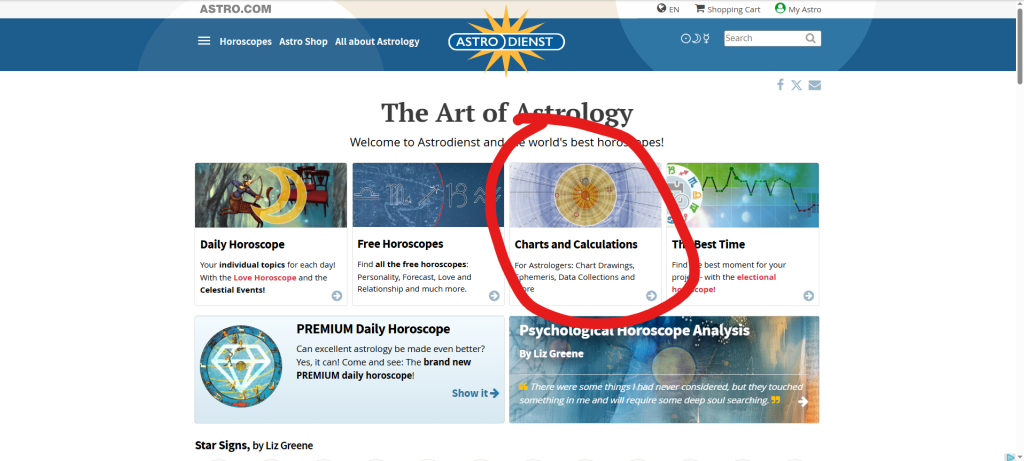
2. Once there, select Charts and Calculations:
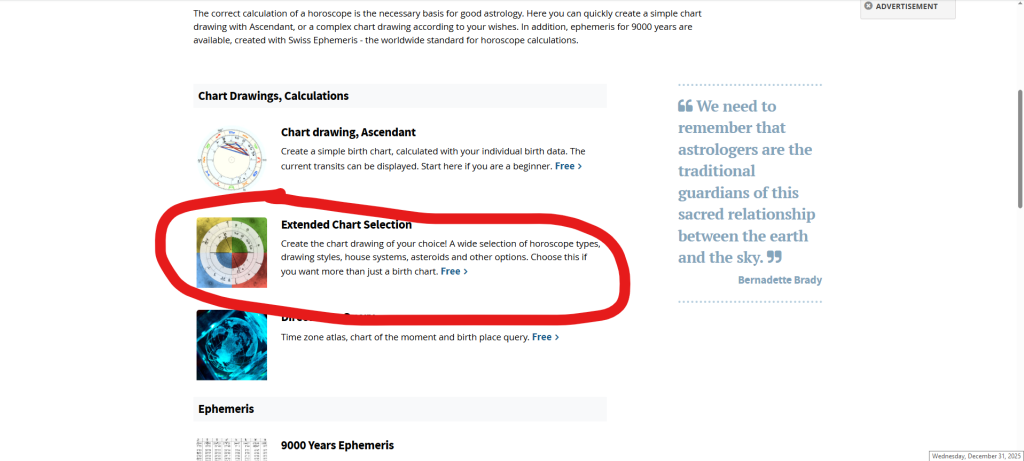
3. Select Extended Chart Selection:
4. Open an account (it’s free) and input your birth data.
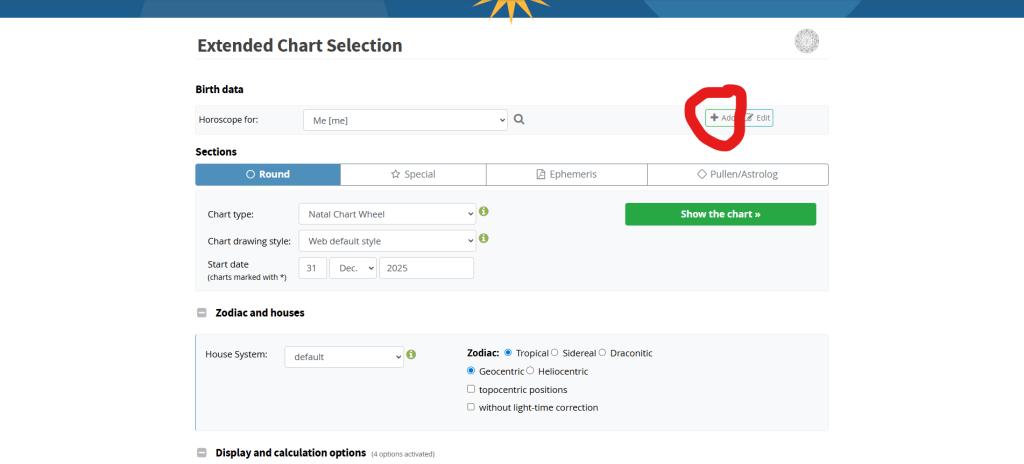
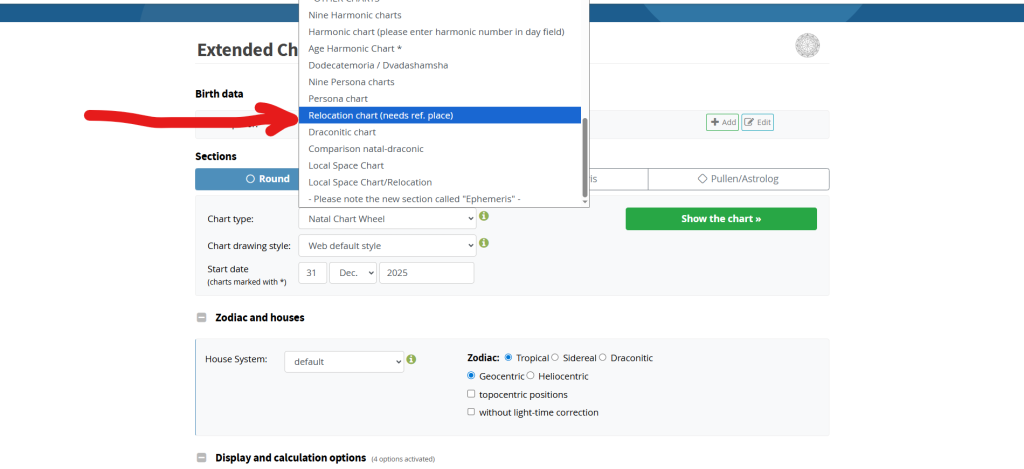
5. For “Chart type”, in the drop-down menu, go almost all the way to the bottom and select “Relocation chart (needs ref. place)”.
6. Press the green button “Show the chart”.
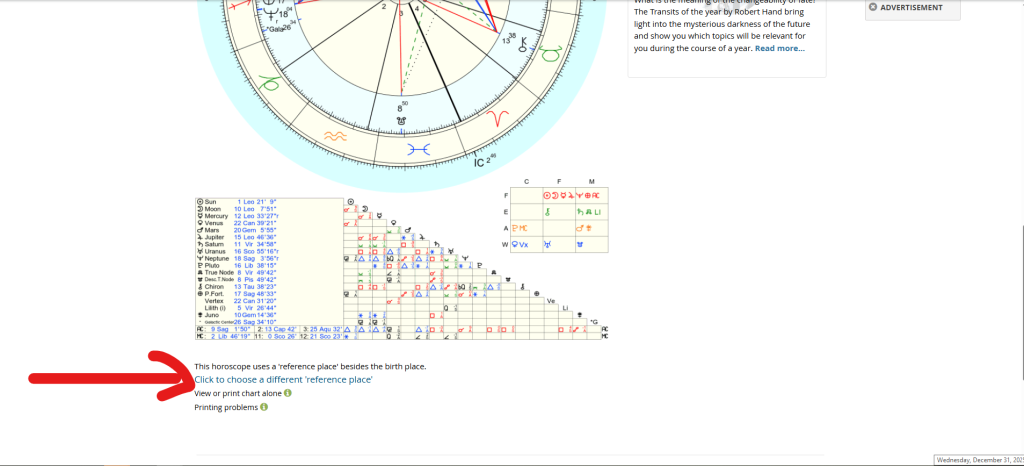
7. You will see the chart for your birth place – that’s their current ‘reference place’. Scroll down under the wheel to where you see “Click to choose a different ‘reference place'”.
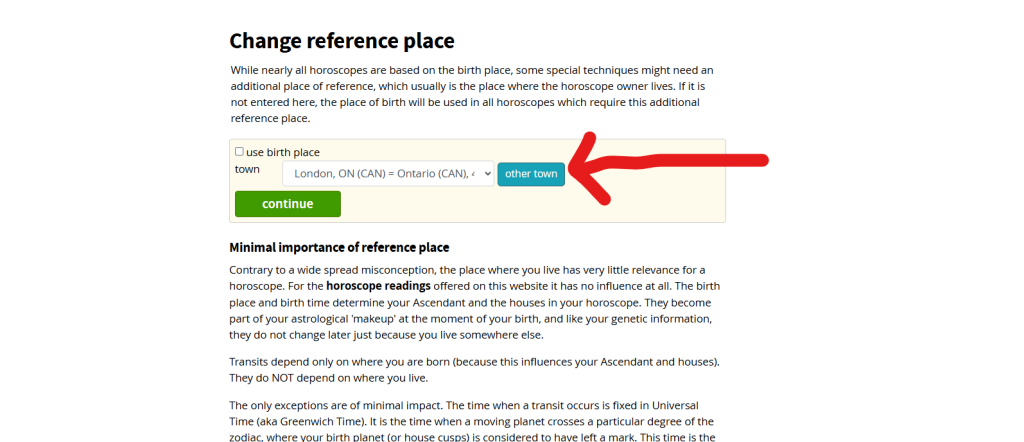
8. Click “other town”. Search for the city you’d like to move to.
9. Note that relocation isn’t a magic pill and the effects are subtle. Click “continue”.
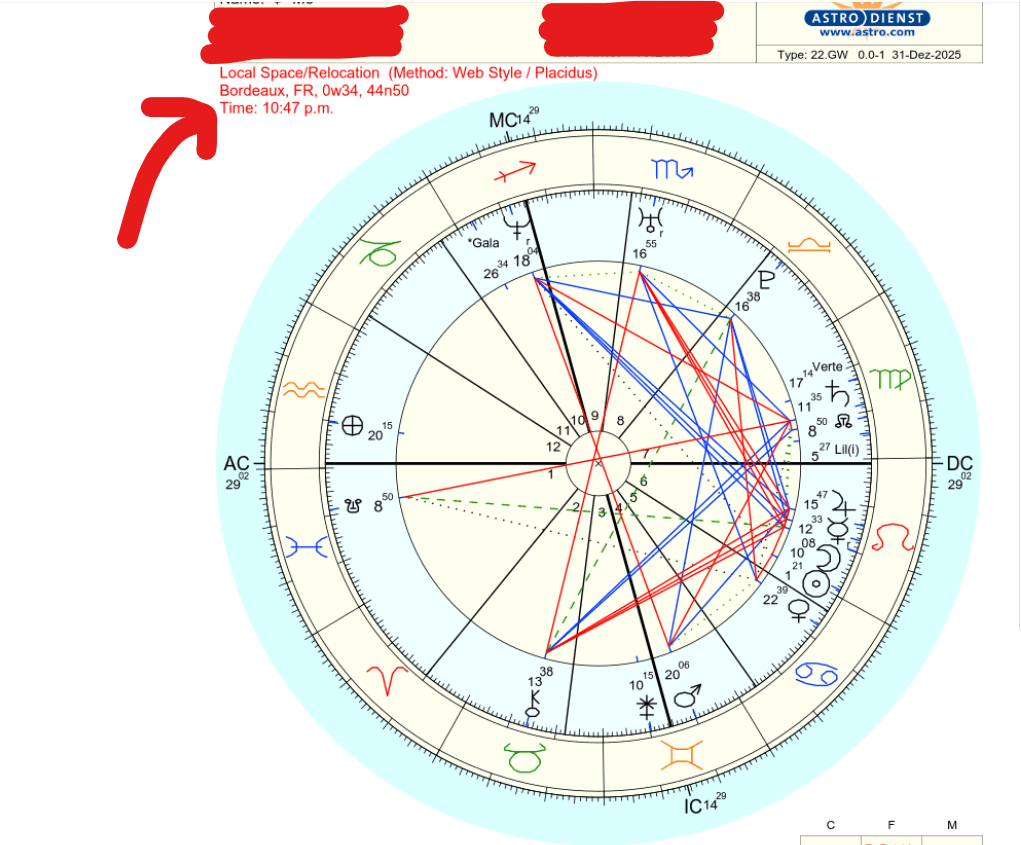
Voila, you should now see that your annotaion has the new location in red at the top:
Questions? Send me an e-mail.